Presentation Template - Liable: A Practical Guide to Avoiding Common Design Pitfalls
Creating a compelling pitch deck or corporate profile often feels like a battle between content and design. You have the data and the narrative, but translating that into a visual format can consume hours of valuable time. This is where the Presentation Template - Liable serves as a strategic asset rather than just a decorative overlay. Designed for versatility, this template supports a wide range of professional needs, from creative agency portfolios and startup pitch decks to personal branding and photography showcases. However, owning a high-quality template is only the first step. The real value emerges when users understand how to leverage its specific architecture without falling into common customization traps that degrade the final output.
Many professionals download premium slides expecting instant perfection, only to end up with a disjointed presentation that looks generic or broken. This usually happens not because the template is flawed, but because the user treats it as a rigid container rather than a flexible system. To get the most out of Presentation Template - Liable, you must approach it with an understanding of its master slide structure, infographic editability, and image handling protocols. By correcting a few widespread misconceptions early in your workflow, you can ensure your final deck maintains the pixel-perfect quality intended by the designers.
Misunderstanding Master Slides vs. Individual Slide Editing
One of the most frequent mistakes users make with any professional PowerPoint file, including Presentation Template - Liable, is editing elements directly on individual slides rather than through the Master Slide view. When you change a font, color, or logo placement on a single slide, you create an override. While this might solve an immediate problem, it breaks the global consistency of the deck. Later, if you decide to rebrand or update the color scheme, you will find yourself manually adjusting dozens of slides because the global link was severed.
The Liable template is explicitly based on Master Slides to prevent this inefficiency. Before you type a single word of content, navigate to View > Slide Master. Here, you will find the foundational layouts that control the 35 unique slides included in the package. Making changes at this level ensures that every new slide you add automatically inherits your brand guidelines. This approach saves significant time during revisions and ensures that your corporate profile or pitch deck maintains a cohesive visual identity from the title slide to the closing contact page. If you are preparing a portfolio for multiple clients, setting up distinct master themes allows you to switch contexts instantly without rebuilding the deck from scratch.
Overlooking the Editability of Handcrafted Infographics
Data visualization is often where presentations fail. Users frequently see a beautiful chart or diagram in the preview and assume it is a static image or a complex vector illustration that requires Adobe Illustrator to modify. This assumption leads to wasted budget or abandoned designs. A key feature of Presentation Template - Liable is that the handcrafted infographics are native PowerPoint objects. They are fully resizable and editable within the software itself.
However, users sometimes accidentally ungroup these elements or convert them to images to "lock" the design, which destroys their editability. Always keep infographics grouped unless you need to modify a specific shape. Because these graphics are vector-based, they remain crisp at any size, making them ideal for both large-screen projections and printed handouts. If you need to change a process flow or update quarterly statistics, simply select the shape and edit the text or fill color directly. Avoid the temptation to screenshot these graphics from the demo; utilizing the native editable vectors ensures your data remains accurate and your file size stays manageable.
Navigating Image Placeholders Correctly
Visual impact is critical for creative agencies, photographers, and personal portfolios. A common source of frustration arises when users try to insert photos by simply pasting them onto the slide. This often results in stretched images, awkward cropping, or elements sliding behind background shapes. Presentation Template - Liable utilizes dedicated picture placeholders designed to streamline this process, but they require proper interaction.
Instead of pasting, always use the drag-and-drop method or the "Change Picture" icon located in the center of the placeholder. This forces the image to conform to the pre-set mask and aspect ratio defined by the designer. This distinction is vital for maintaining the pixel-perfect aesthetic promised in the product description. For photographers showcasing work, this ensures consistent framing across the portfolio section. For business profiles, it guarantees that team headshots or product images align perfectly with the grid system. Taking thirty seconds to learn proper placeholder usage prevents the amateurish look of misaligned media and keeps the focus on your content rather than formatting errors.
Managing Expectations Regarding Included Assets
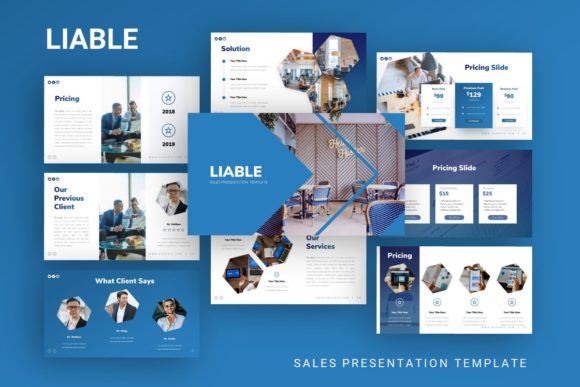
A practical warning for first-time buyers: the images seen in the promotional preview are for demonstration purposes only and are not included in the downloadable files. This is standard industry practice due to licensing restrictions, yet it remains a frequent point of confusion. Users sometimes delay their projects searching for the exact stock photos used in the demo, or worse, they attempt to use watermarked preview images in live presentations.
To avoid this bottleneck, audit your visual assets before opening the PPTX file. Prepare a folder of high-resolution, licensed images that match the tone of your presentation. Since Presentation Template - Liable includes 35 diverse layouts, you have ample room to experiment with different visual arrangements. Having your assets ready allows you to utilize the drag-and-drop placeholders efficiently. Additionally, while the template includes vector icons, verify that they match your specific industry needs. The included icon set is comprehensive, but niche sectors may require supplementary graphics. Sourcing these extras beforehand ensures a smooth build process without mid-project interruptions.
Evaluating Suitability for Your Specific Use Case
Versatility is a strength, but it can also lead to scope creep. Just because Presentation Template - Liable works for a startup pitch deck does not mean every one of its 35 slides is appropriate for your specific goal. A common error is trying to use too many varied layouts in a single presentation, resulting in a chaotic viewer experience. Consistency builds trust, especially in corporate and business contexts.
Before customizing, identify the core purpose of your deck. If you are creating a personal portfolio, prioritize the gallery and biography slides, and delete unused financial charts to reduce file bloat. If you are building a pitch deck, focus on the problem-solution and market analysis infographics, perhaps omitting the extensive photography grids. Curating the template to fit your narrative arc is more effective than showcasing every available feature. This selective approach improves loading times, simplifies navigation, and demonstrates professional restraint.
Leveraging Documentation for Long-Term Efficiency
Finally, never ignore the documentation file included with your download. It contains specific instructions regarding font dependencies, color codes, and layer management unique to this template. Skipping this step often leads to missing fonts or broken links when sharing the file with colleagues or clients. The documentation acts as a technical manual that bridges the gap between the designer’s intent and your execution.
For teams collaborating on Presentation Template - Liable, establishing a shared protocol based on this documentation is essential. Agree on which master slides to use, where to store linked assets, and how to handle custom infographics. This upfront alignment prevents version control issues and ensures that anyone on the team can open and edit the file without compromising its integrity. By treating the template as a professional tool supported by proper documentation, you transform a simple PPTX file into a sustainable communication asset that delivers consistent, high-quality results for years to come.